
 中文 | CNY
 English | USD
 Русский | RUB












1. Sign in to Gmail
Open your browser and go to the Gmail official website.
Enter your email address and password to log in to your Google account.
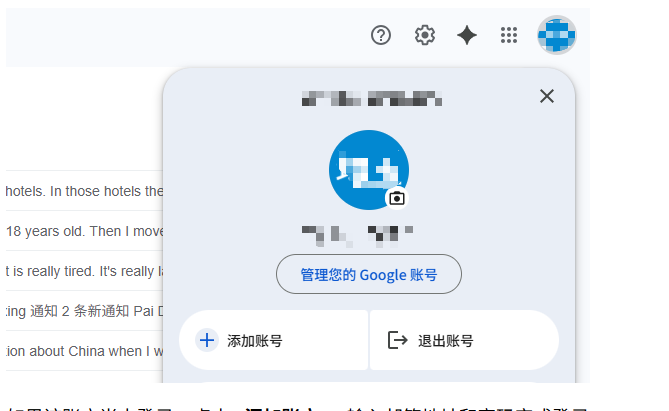

2. Switch Between Logged-in Accounts
After logging in, click your profile picture icon in the top-right corner of the page.
In the account menu that appears, you will see all currently signed-in Google accounts.
Click the account you want to use to instantly switch to its Gmail interface.
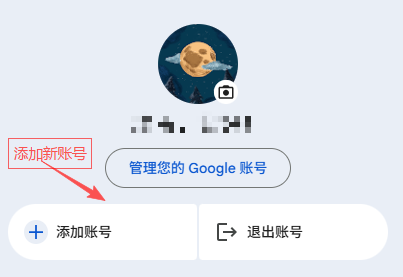
3. Add a New Account
If the account you want to switch to is not yet logged in, follow these steps:
-
Click “Add another account” in the account menu
-
Enter the new email address and password to sign in
-
Once logged in, the account will automatically be added to your account list
After that, you can quickly switch between accounts anytime from the profile menu.

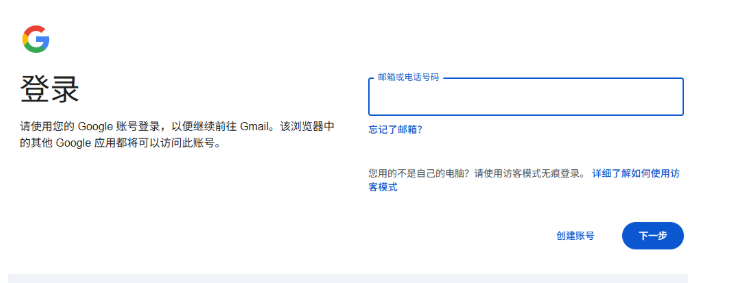
4. Important Notes
-
Gmail allows multiple accounts to be signed in at the same time without logging out
-
Switching accounts does not affect the status of other logged-in accounts
-
When using a public or shared device, remember to log out of all accounts afterward for security
By following these steps, users can efficiently switch between multiple Gmail accounts, improving email management convenience and productivity.