
 中文 | CNY
 English | USD
 Русский | RUB












LinkedIn is a widely used professional social networking platform. Users can log in to their personal profiles with an account and password. If you want to improve account security or suspect that your password may have been compromised, you can change your LinkedIn login password promptly. Below is a detailed guide on how to change your LinkedIn password.
1. Change Your Password on the Desktop Website
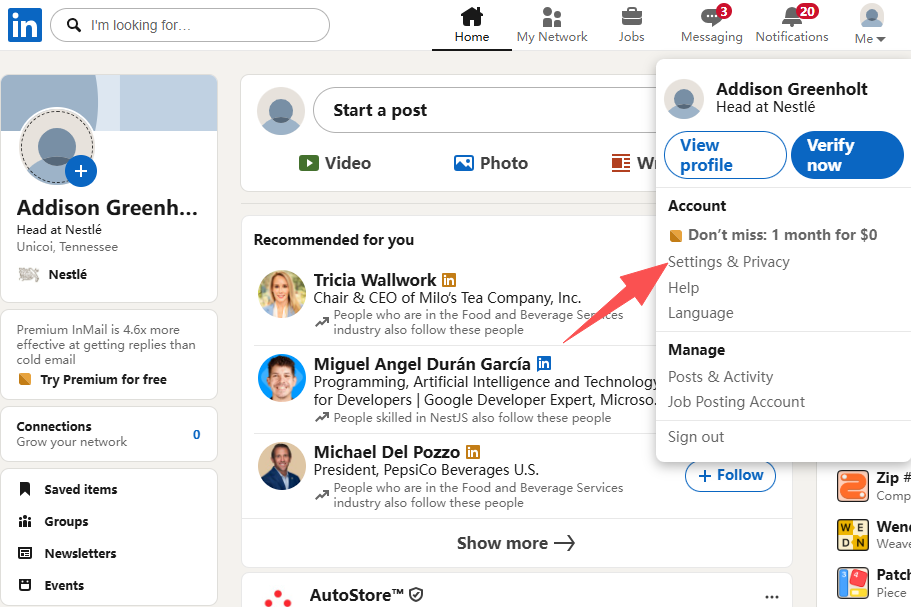
First, open the LinkedIn official website and log in to your account. After logging in successfully, click your profile picture at the top of the page and select Settings & Privacy.
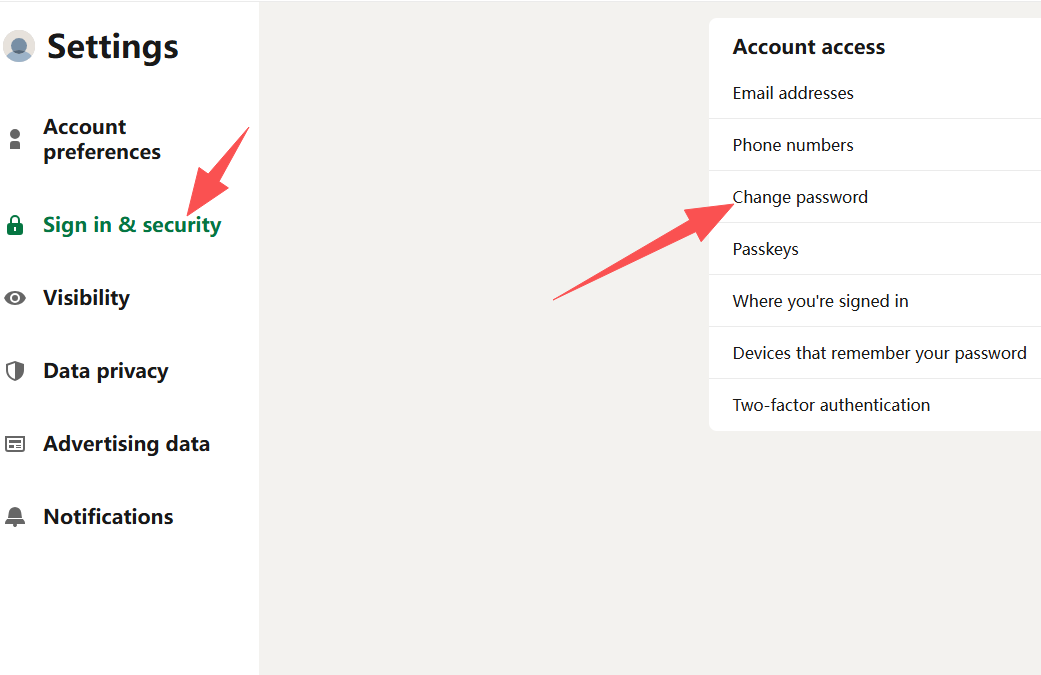
In the settings page, find Sign in & security, then locate Change password in the relevant security settings.
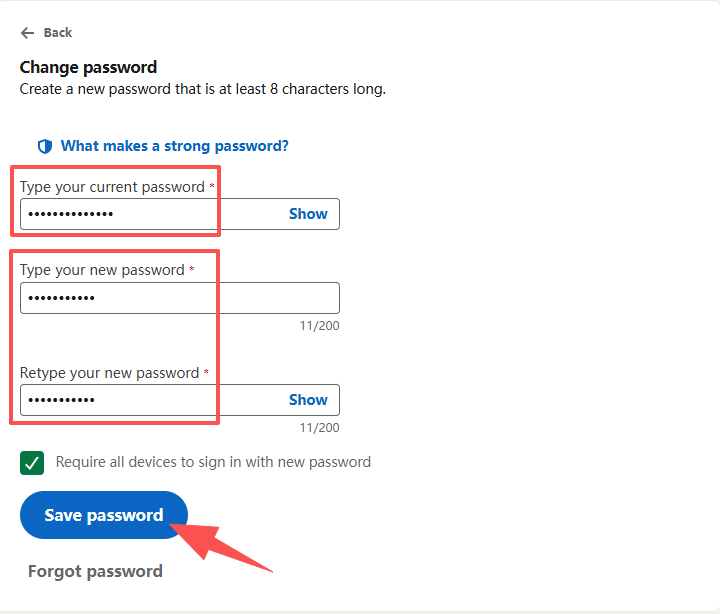
Click to enter the password change page. The system will usually ask you to enter your current password, followed by your new password. Re-enter the new password according to the instructions to confirm it, then click Change password to complete the process.
It is recommended to set a strong password that is difficult to guess. You can combine uppercase and lowercase letters, numbers, and special characters. Avoid using information such as your birthday, phone number, or simple consecutive numbers.
2. What to Do If You Forgot Your Password?
If you can no longer log in to LinkedIn because you do not know your current password, select Forgot password? on the login page.
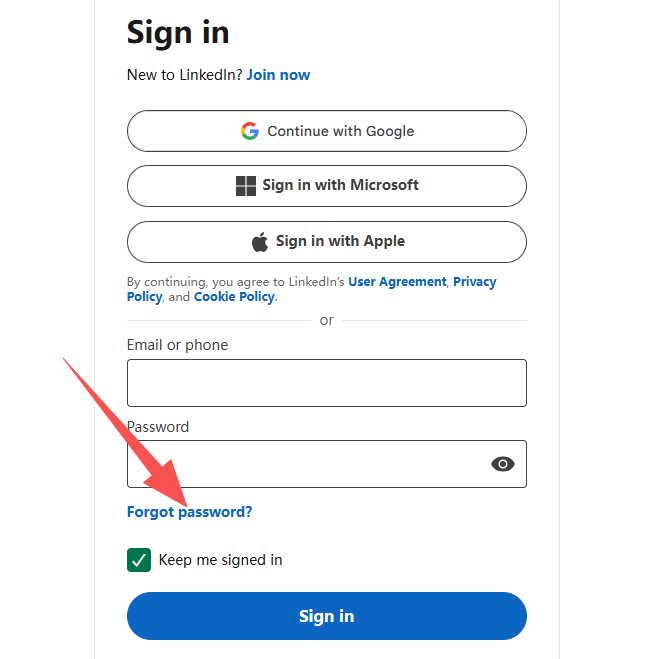
Enter the email address or phone number associated with your LinkedIn account. Follow the instructions to receive a verification code or password reset email, and then set a new password as prompted.
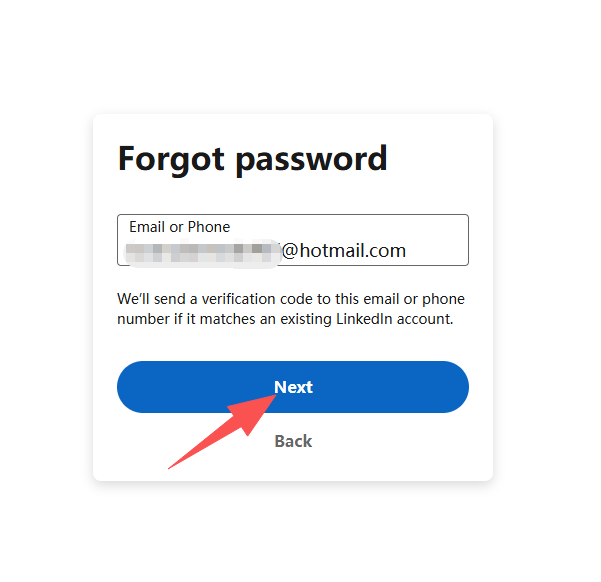
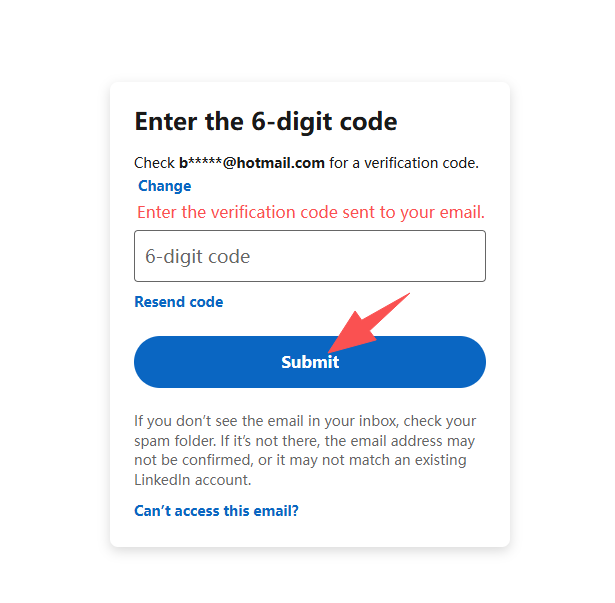
If you do not receive the verification code or password reset email, check your spam or junk mail folder and make sure you are using the email address or phone number linked to your LinkedIn account.
3. Things to Note After Changing Your Password
After changing your password, it is recommended to check your account's logged-in devices and security settings. If you find any unfamiliar devices or unusual login activity, take appropriate security measures promptly.
Do not share your LinkedIn password with others, and avoid entering your account password or verification codes on unfamiliar websites. To further protect your account, you can enable two-factor authentication (2FA) through the security options currently provided by LinkedIn.
Summary
Changing your LinkedIn password can generally be done through Settings & Privacy → Sign in & security → Change password. Regularly checking your account security information and using a strong, unique password can help reduce the risk of unauthorized access. If you forget your current password, you can use the Forgot password? option on the login page to reset it.