
 中文 | CNY
 English | USD
 Русский | RUB












Twitter (X) provides the 2FA Two-Factor Authentication feature to improve account security. After enabling two-factor authentication, users need to enter an additional verification code when logging into their account, in addition to their account password. This can effectively reduce security risks such as account theft and password leaks.
Currently, Twitter/X supports Authentication App, SMS Verification, and Security Key methods. Among them, the Authentication App is widely used and provides higher security. The following explains how to enable 2FA on Twitter/X.
一. Enter Account Security Settings
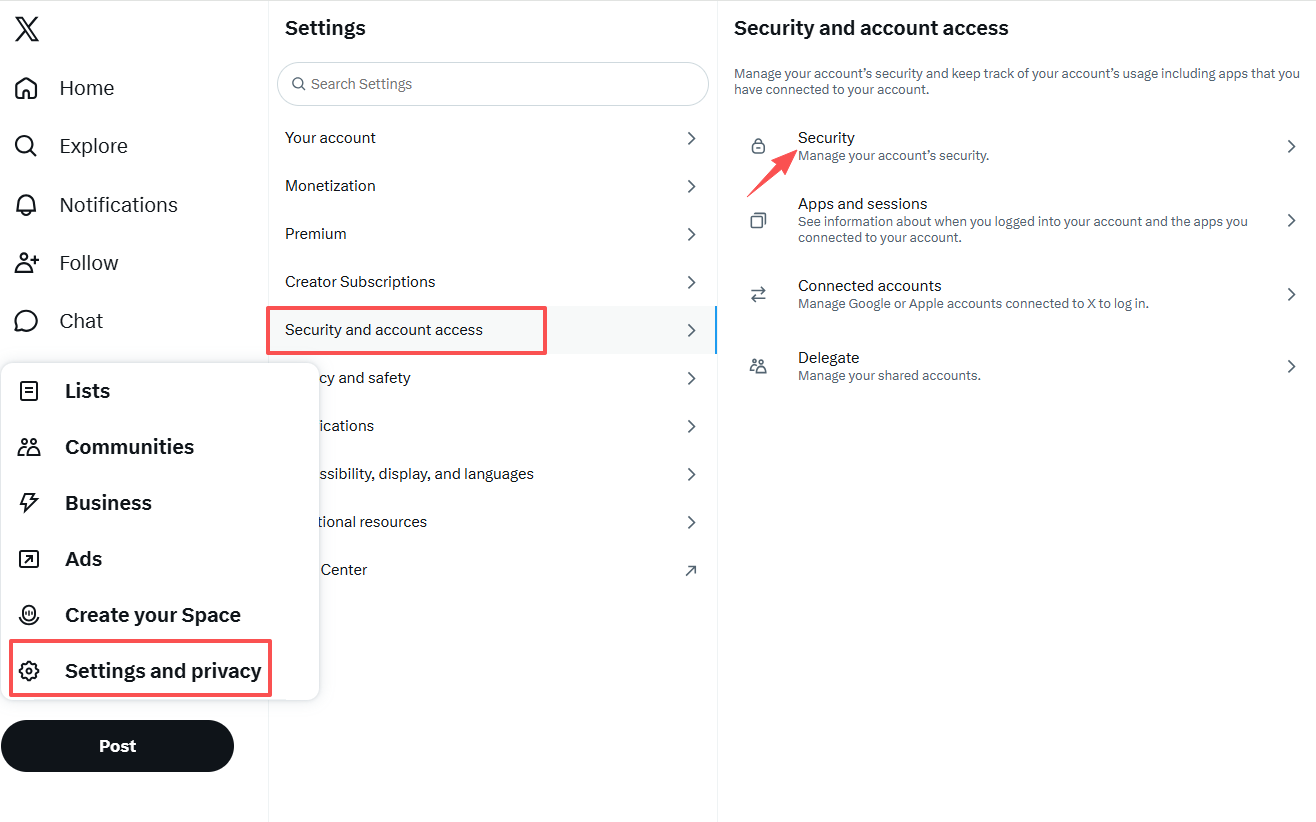
First, log in to your Twitter/X account and enter the account settings page.
Steps:Settings and privacy → Security and account access → Security → Two-factor authentication
 👉
👉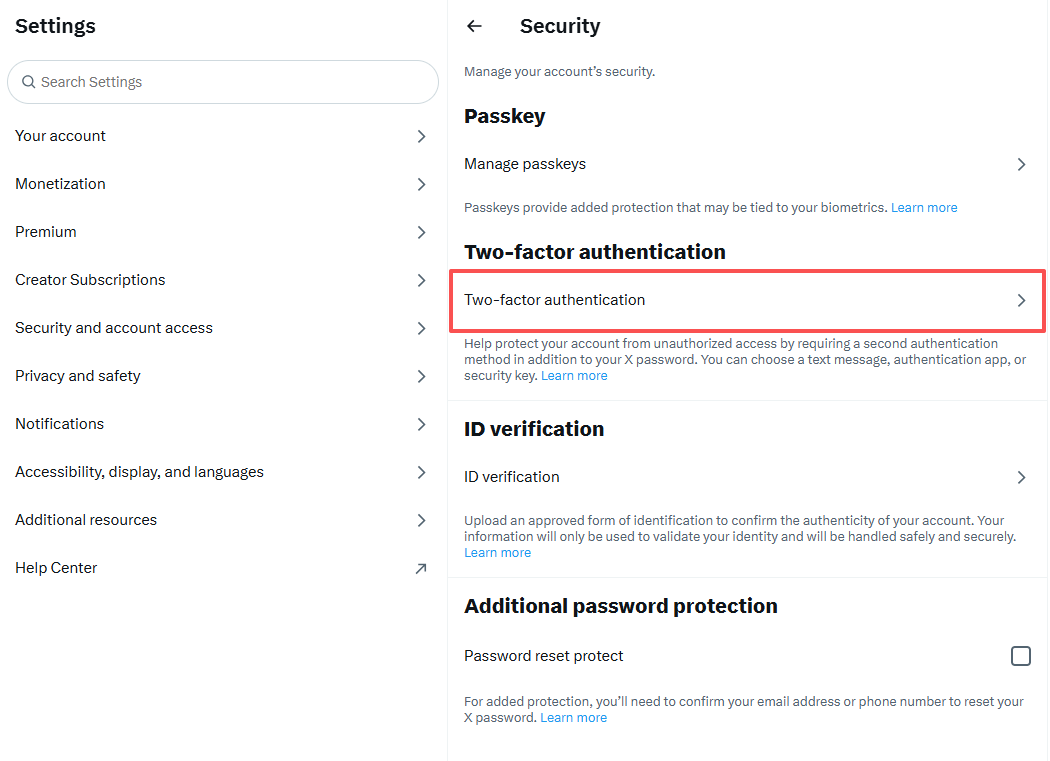
After entering, you will see the 2FA settings option.
二. Select Verification Method
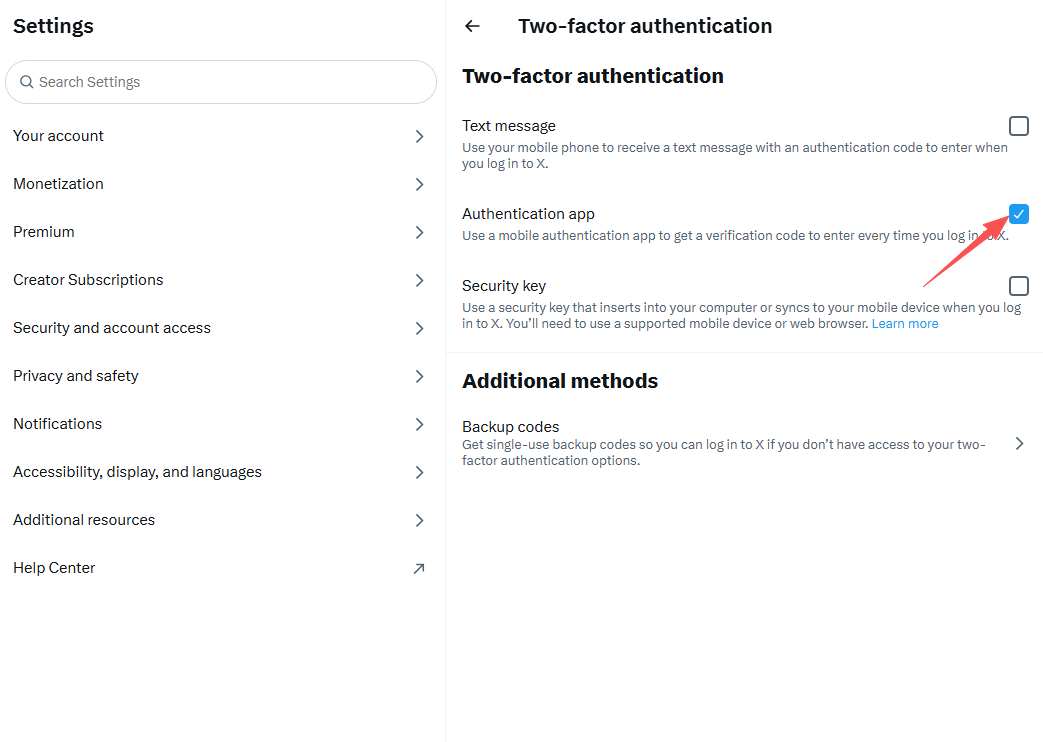
Twitter/X provides multiple verification methods:
- Authentication App
- SMS Verification
- Security Key
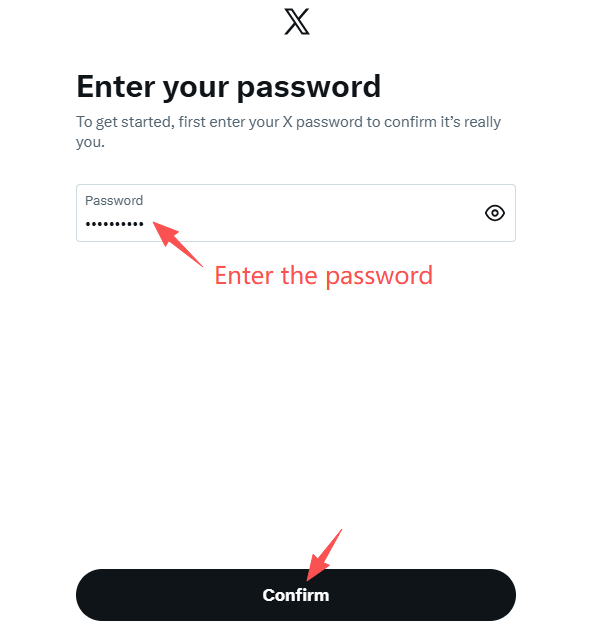
It is generally recommended to choose Authentication App. After enabling it, the system may require you to enter your account password for identity verification.
 👉
👉
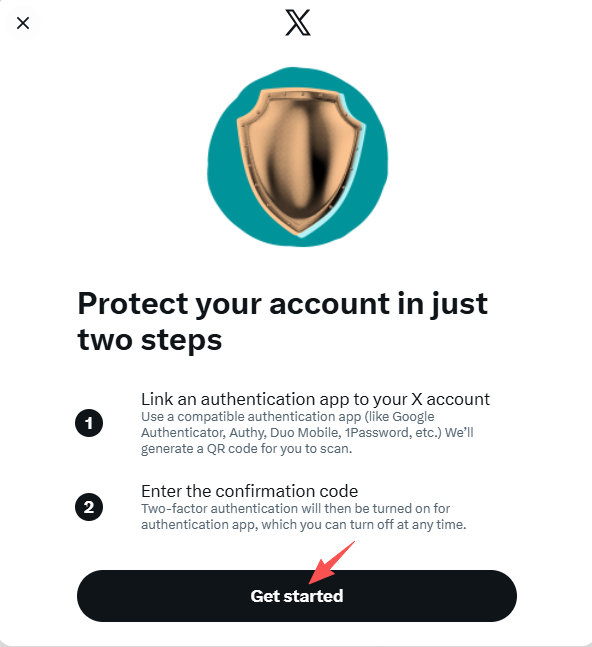
三. Link Authentication App
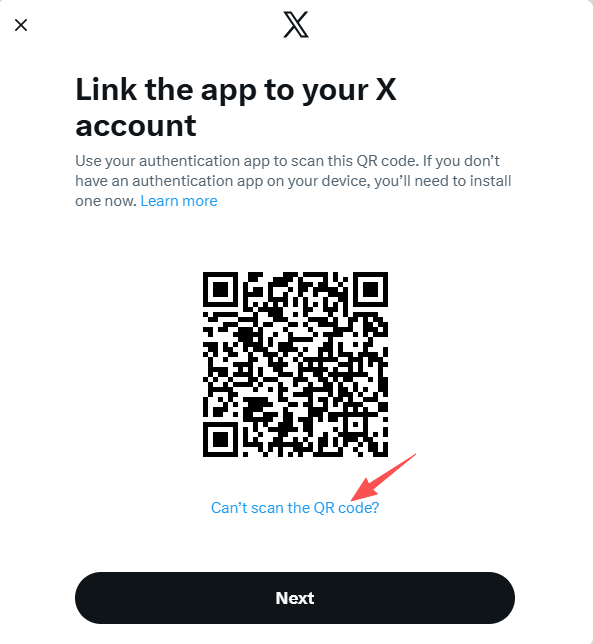
After selecting the Authentication App option, Twitter/X will display a QR code.
1.Select Unable to Scan the QR Code.
 👉
👉
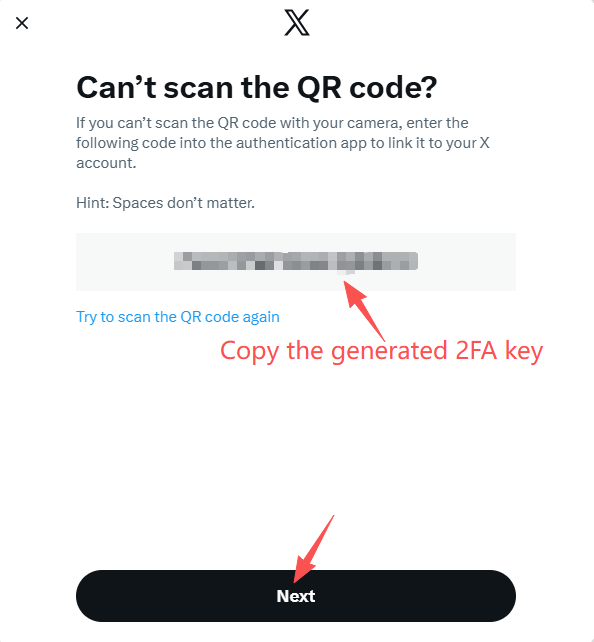
2.Copy the generated 2FA Secret Key and enter it into a 2FA authentication app to generate verification codes.
 👉
👉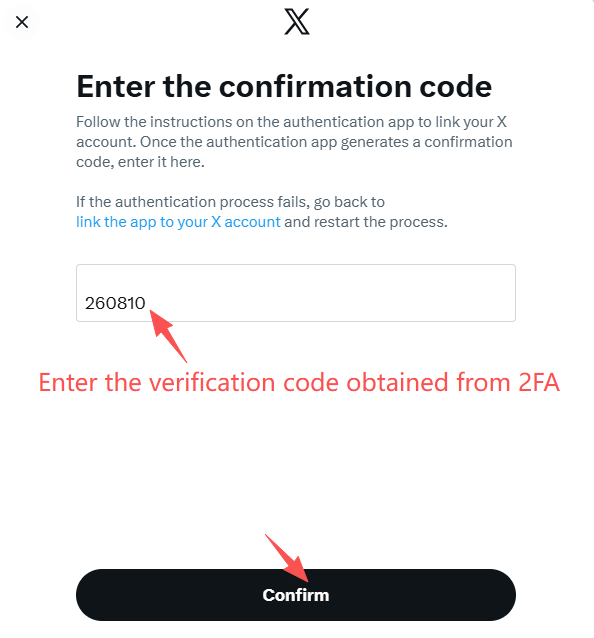
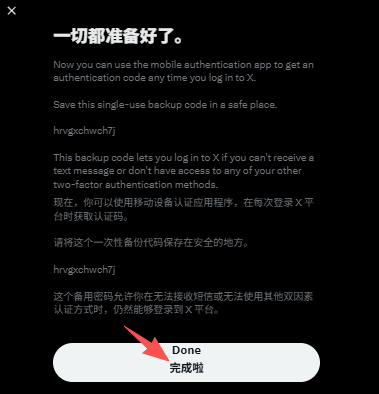
3.Complete the setup.
四. Important Notes After Enabling 2FA
1. Avoid Frequently Changing Login Environments
After enabling 2FA, frequently changing login devices, IP addresses, browser environments, or clearing Cookies may cause the platform to trigger additional security verification.
2. Protect 2FA Key Information
The key (Secret Key) generated during 2FA setup is important security information. Do not share it with others to avoid the account being re-linked with another authenticator or causing security risks.
3. Regularly Check Account Security Settings
It is recommended to regularly check your account email, password, login devices, and security records. If you notice abnormal logins or suspicious activity, take action promptly.
4. Do Not Disable 2FA Protection
For long-term accounts, it is recommended to keep two-factor authentication enabled to improve account security and reduce the risk of account theft.
Summary
Enabling 2FA on Twitter/X is not complicated. You only need to enter the security settings, select the Authentication App, and complete the setup. After enabling 2FA, even if the account password is leaked, attackers cannot easily log in without the verification code, which can effectively improve account security.
For long-term personal accounts, business accounts, and social media management accounts, enabling two-factor authentication is recommended to reduce abnormal login attempts and security risks.