
 中文 | CNY
 English | USD
 Русский | RUB












During the operation of a Facebook Page, some users may encounter situations where the Page is locked and they are unable to modify the Page name, profile picture, bio, or other information. When such issues occur, it is not recommended to repeatedly submit modification requests, as this may further trigger Facebook’s security review. You can troubleshoot and handle the issue according to the specific prompts by following the methods below.
I. Problem Description
Some Facebook users may encounter the following situations:
- The Page or account is temporarily locked
- Unable to change the name, profile picture, or personal information
- Additional verification is required after logging in
- An error or unusual prompt appears when modifying information
- The browser has saved an old login session, causing the verification process to not display properly
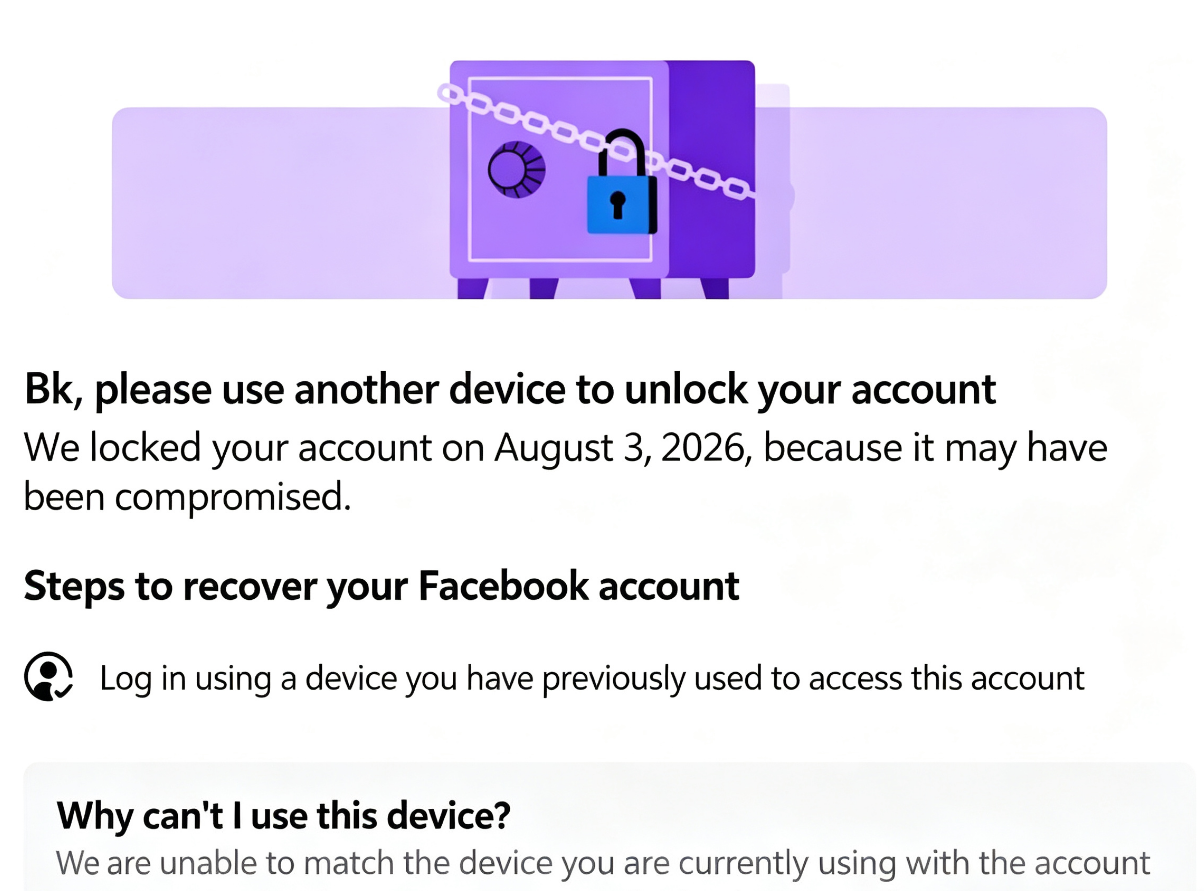
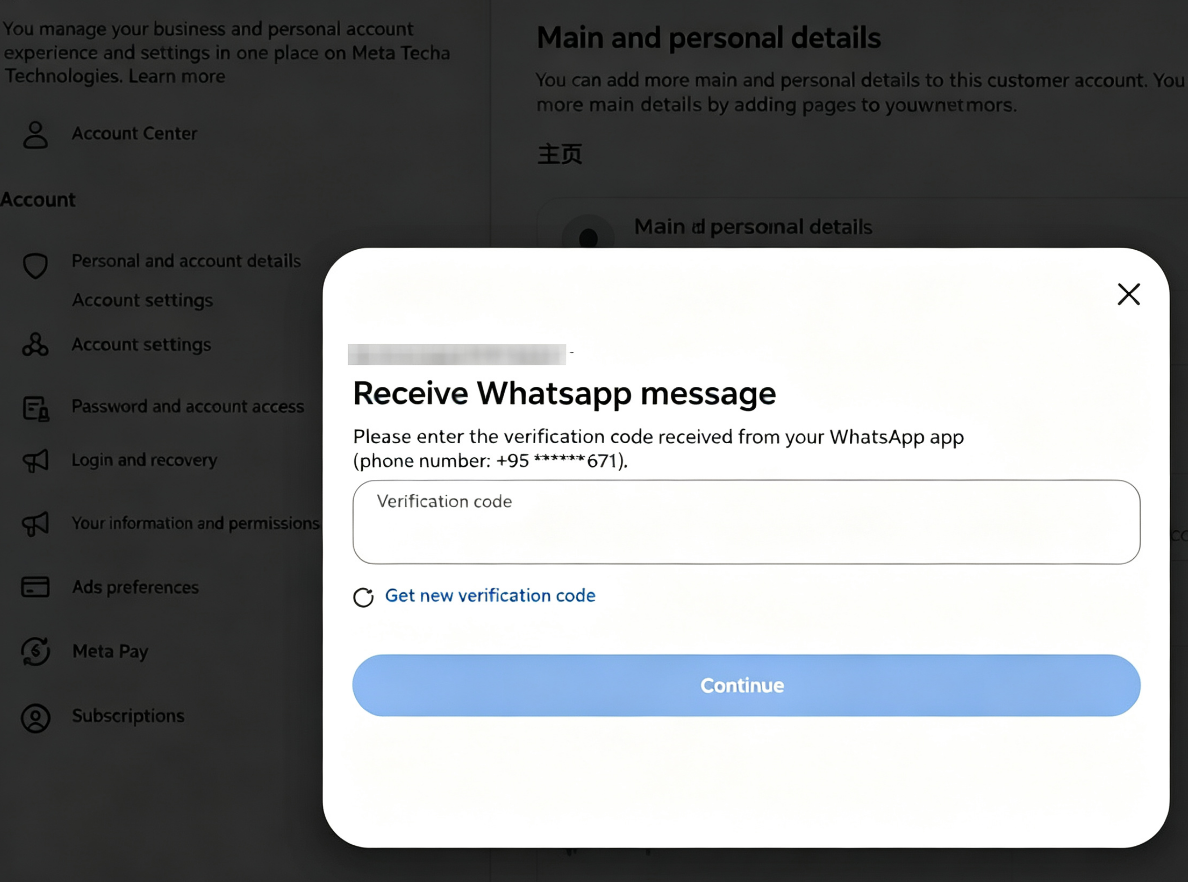
These situations are usually related to account security verification, changes in the login environment, browser cache, or the platform’s risk-control mechanisms.
II. Recommended Basic Troubleshooting Methods
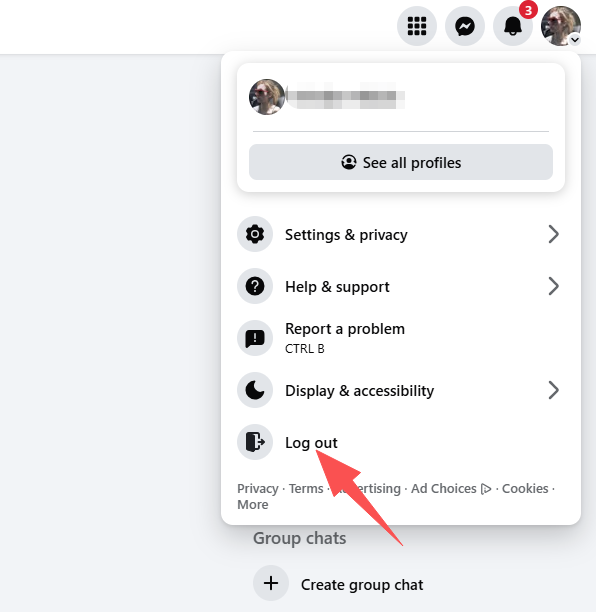
1. Log Out of the Current Account
If Facebook is currently logged in through the browser: properly log out of the Facebook account / do not continue repeatedly trying to modify personal information / close the current Facebook page.
2. Clear the Browser Login Session
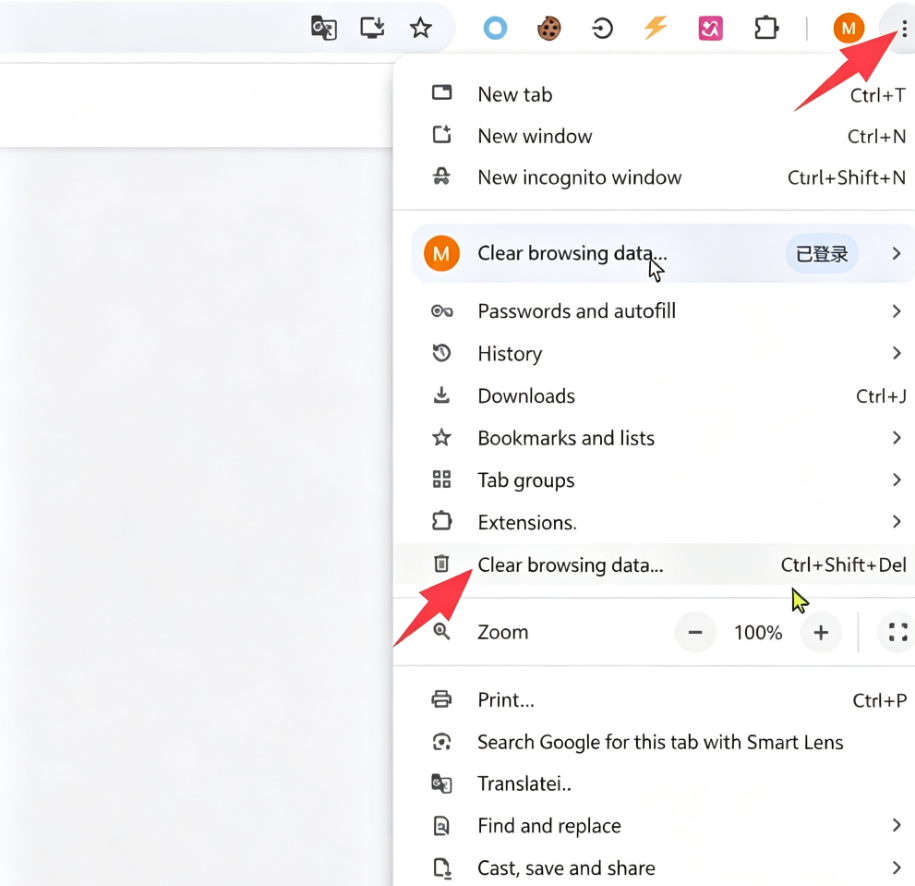
You can clear Facebook-related Cookies / Cache / Website Data / Saved Login Information, and then reopen the browser.
It is recommended not to delete all browser data. Only clear the website data related to Facebook.
3. Log In Again
Use the Facebook-supported official account and password login method to log in again.
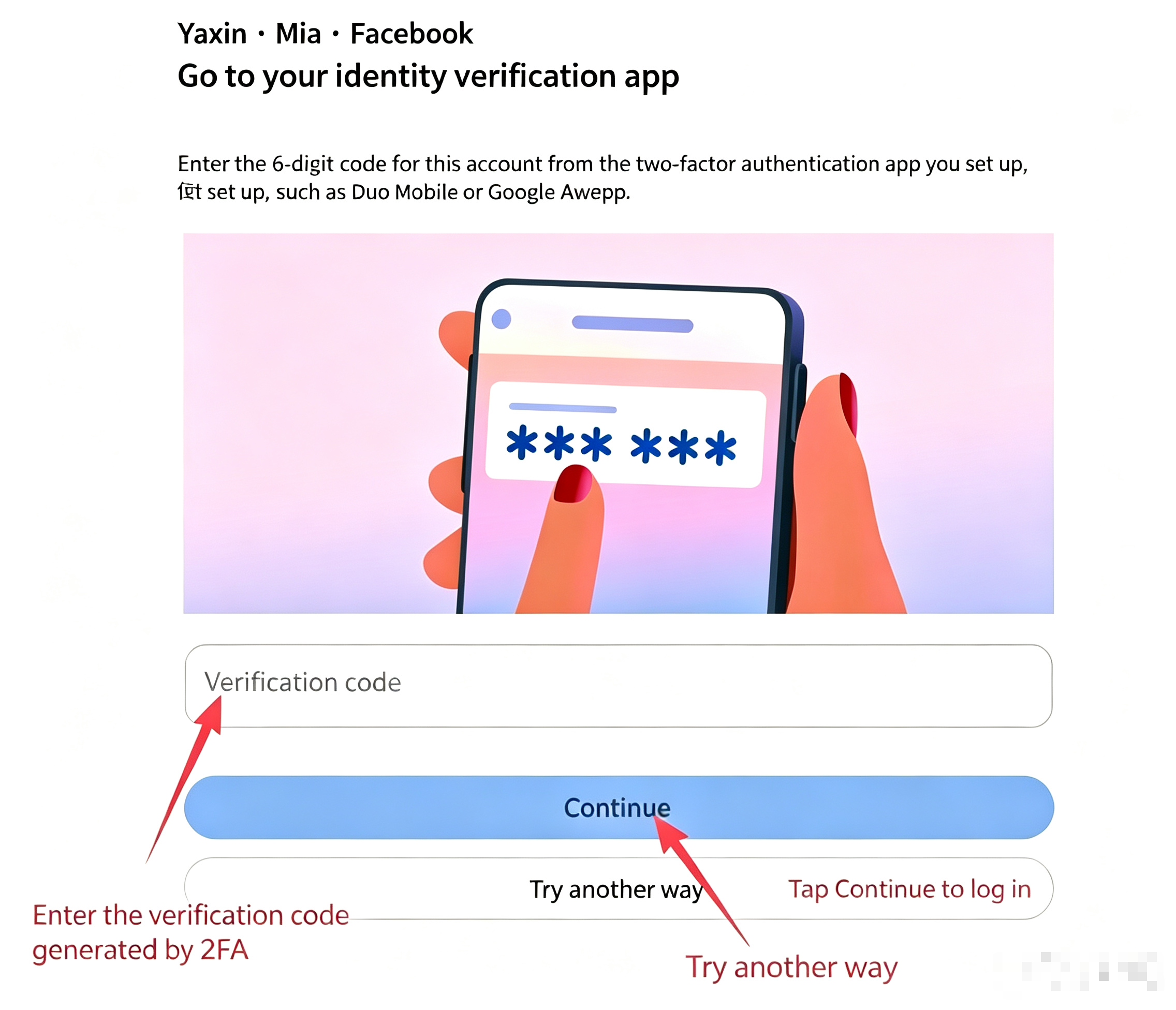
If the system requires an SMS verification code / identity verification / two-factor authentication (2FA) / security confirmation, complete the verification according to the instructions displayed on the page.
4. If Additional Security Verification Appears
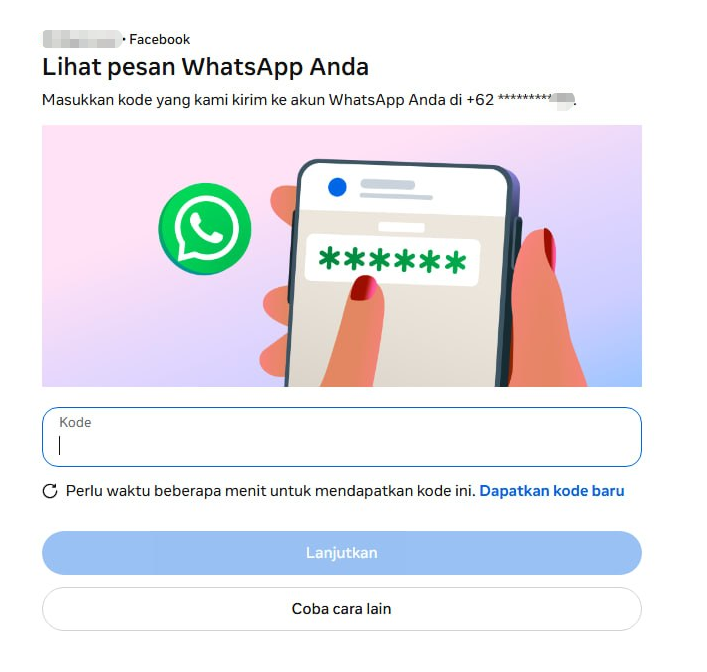
If an additional verification page appears after logging in again, it means Facebook is confirming the identity of the account owner.
It is recommended to:
- Complete the verification according to the instructions on the page.
- Use the email address or phone number originally linked to the account.
- Do not repeatedly submit verification requests.
- Wait for the account status to be restored after completing the verification.
- Try modifying the personal information again after the account has been restored.
5. If Changing the Browser Still Does Not Solve the Problem
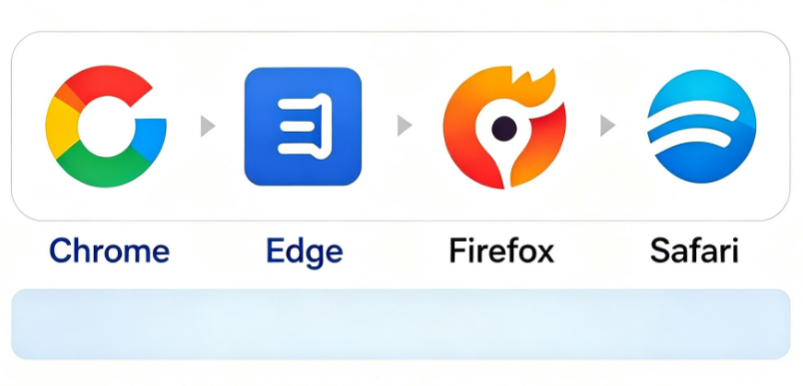
You can use another normal, clean browser environment to test the login.
For example: Chrome / Edge / Firefox / Safari
However, do not repeatedly test by frequently switching browsers, devices, or IP addresses, because frequently changing the login environment may instead trigger additional security verification.
III. If the Page Still Cannot Be Edited
If you still cannot change the name, profile picture, or other information after completing the verification, it is not recommended to continue trying repeatedly.
You can check:
Settings → Account Status / Support Inbox → Check whether there are any restrictions or security notifications
If Facebook clearly indicates that the account is restricted, follow the official appeal or identity verification process.
IV. Frequently Asked Questions
Q1: Why can I log in normally but cannot edit the information?
Successful login does not necessarily mean that all account functions have been restored. Facebook may only restrict certain sensitive operations, such as changing the name, email address, phone number, or other personal information.
Q2: Why does repeated login result in more verification requests?
Facebook makes security assessments based on factors such as the login device, network environment, and frequency of operations. Frequently logging in and out, changing devices, or modifying information within a short period may trigger additional verification.
Q3: Do I need to keep changing browsers?
It is not recommended.
If you can already log in normally, it is better to maintain a stable device and browser environment rather than constantly changing the environment.
Q4: What should I do if an abnormality occurs after logging in with Cookies?
If Cookies cause an abnormal login status, it is recommended to log out of the account and clear the corresponding website data, then use the official Facebook-supported login method to verify the account again.
V. Summary
When encountering issues such as a Facebook “Page being locked, unable to change the name, or unable to modify information,” it is recommended to handle the issue in the following order:
Log out of the account → Clear website data → Log in normally with the account and password → Complete official security verification → Wait for the restriction to be lifted → Modify the information again
Do not use forged verification information, stolen Cookies, methods to bypass 2FA, or other means to circumvent Facebook’s security mechanisms.