
 中文 | CNY
 English | USD
 Русский | RUB












Gmail allows you to change your login password directly through the Google Account management page. To improve account security, whether you have forgotten your current password, suspect that your password has been compromised, or need to change it regularly, you can complete the process through the web version. The following section explains the specific steps to change your Gmail password using a computer browser.
I. Sign in to your Google Account
First, open a browser on your computer, go to the Gmail website, and sign in to the Google Account whose password you want to change.
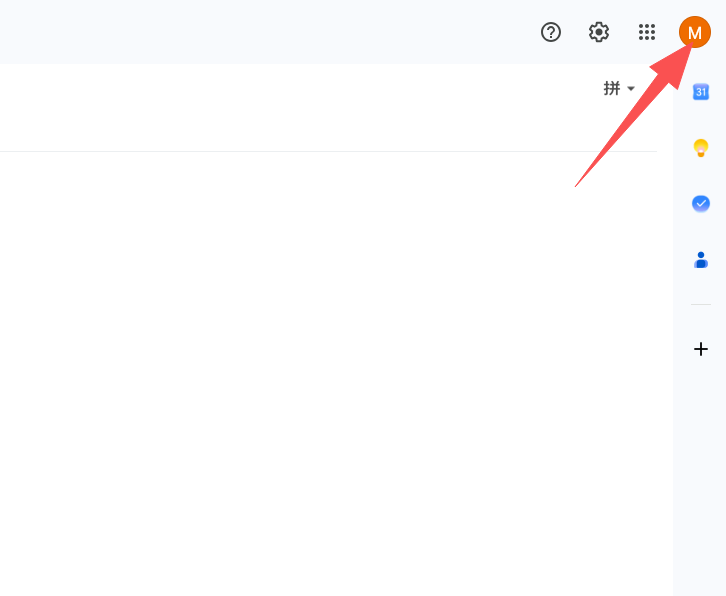
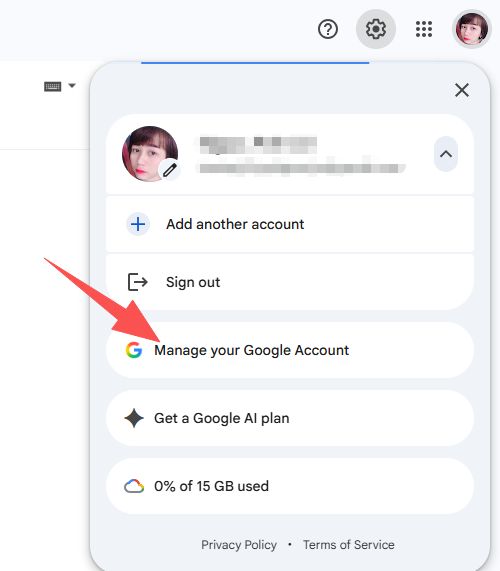
After signing in successfully, click your profile picture in the upper-right corner of the page and select “Manage your Google Account” from the pop-up menu.
II. Access Security Settings
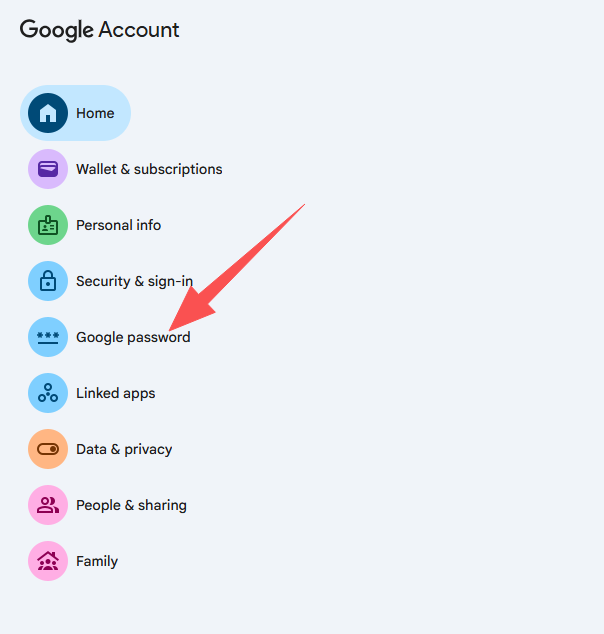
After entering the Google Account management page, find and click “Google Password” on the left side of the page.
The system may require identity verification. Follow the on-screen instructions to enter your current password or complete another verification process.
III. Change Your Account Password
Enter the new password you want to set in the “New password” field, then enter the same password again to confirm it.
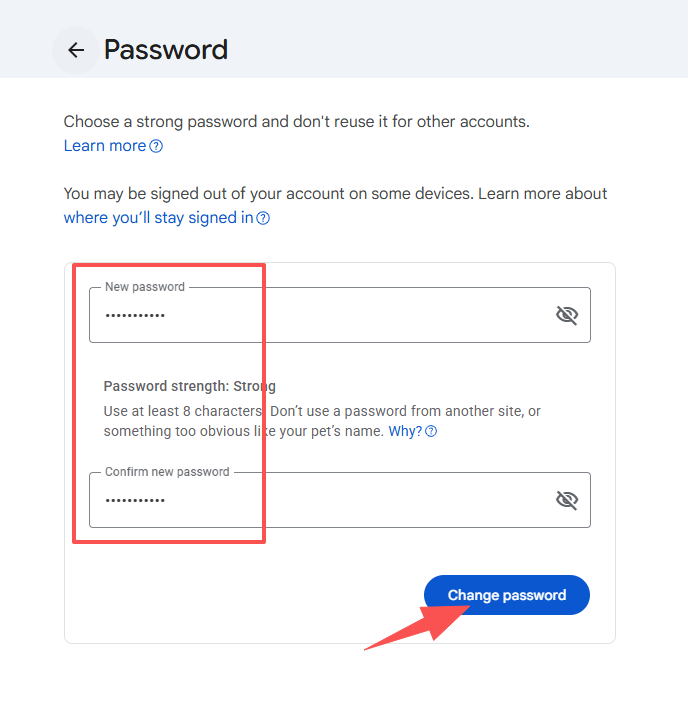
It is recommended that you set a relatively complex password that is difficult to guess. You can combine uppercase and lowercase letters, numbers, and special characters. Do not use an overly simple password or personal information that others could easily guess.
After confirming that the new password is correct, click “Change Password”.
IV. Confirm That the Change Was Successful
After the password has been changed successfully, Google will display a relevant confirmation message. When signing in to Gmail or other Google services afterward, you will need to use the new password.
Some devices that are already signed in to your Google Account may require you to verify your identity again after the password change. If you are asked to sign in again, simply enter your new password.
If two-step verification (2FA) is enabled on your account, you may also need to complete a security verification using your phone, authenticator app, or another method when signing in again.
V. Precautions After Changing Your Password
After changing your password, it is recommended that you visit the “Security & sign-in” section of your Google Account to review recent security activity and signed-in devices. If you find any unfamiliar devices or unusual login records, take appropriate action promptly.
You should also make sure that your recovery email address and recovery phone number are working properly so that you can verify your identity if you forget your password or encounter account issues.
To protect your Gmail account, do not share your password with others, and do not enter your Google Account credentials on unfamiliar websites. After changing your password, make sure to store the new password securely.